Quick answer. Unplug HDMI sources, soft-restart the TV, then decide if the backlight is dead. Do not press on the panel.
A frozen smart OS and a dead backlight look similar until you shine a light at the screen.
MarketPalace Guide Center writes this as a solution walkthrough — the order we would use if we were in the room with you. We name the next click, then what to do if that click fails. We do not sell the TV, the kettle, or the plane ticket.
If a menu name on your set or phone does not match, use the closest wording and email hello@marketpalace.shop. We correct live pages when the path has moved.
What you need
- Remote
- Flashlight
In this guide
1. Check the standby light and the physical power button
Try another wall outlet if the light never changes.
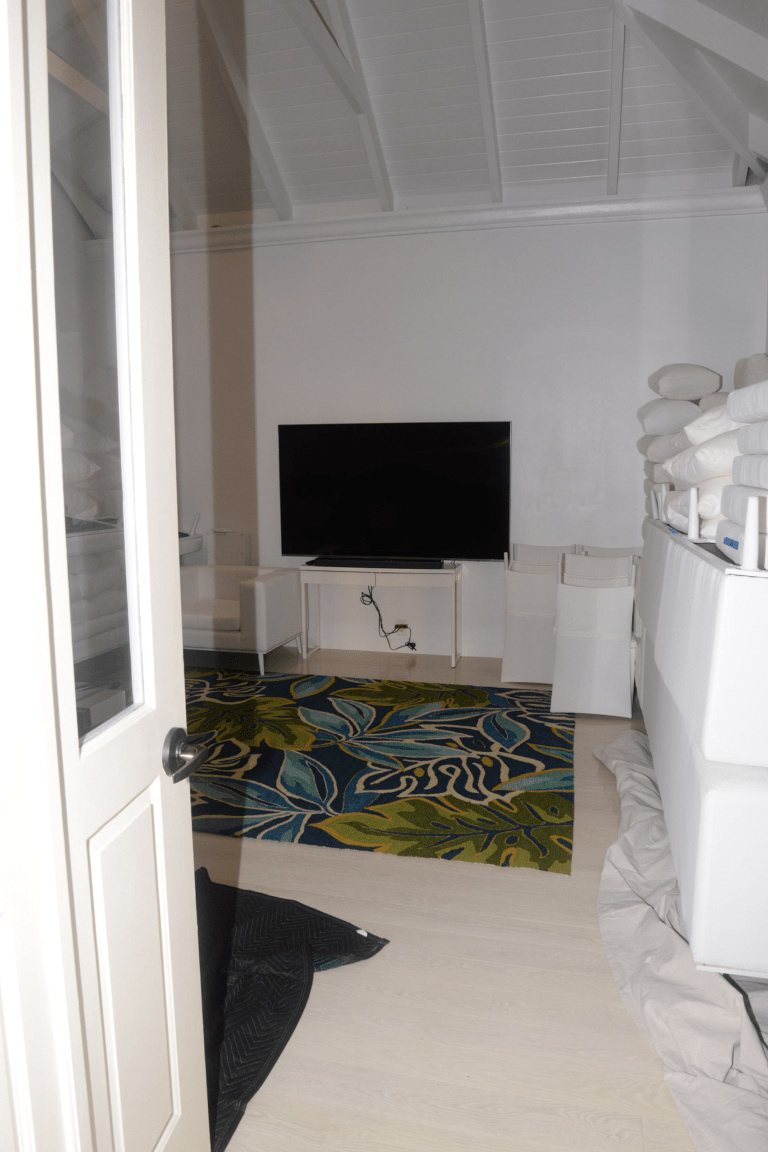
2. Shine a light at the panel
A faint menu means backlight failure — that is a repair. True black means keep going.
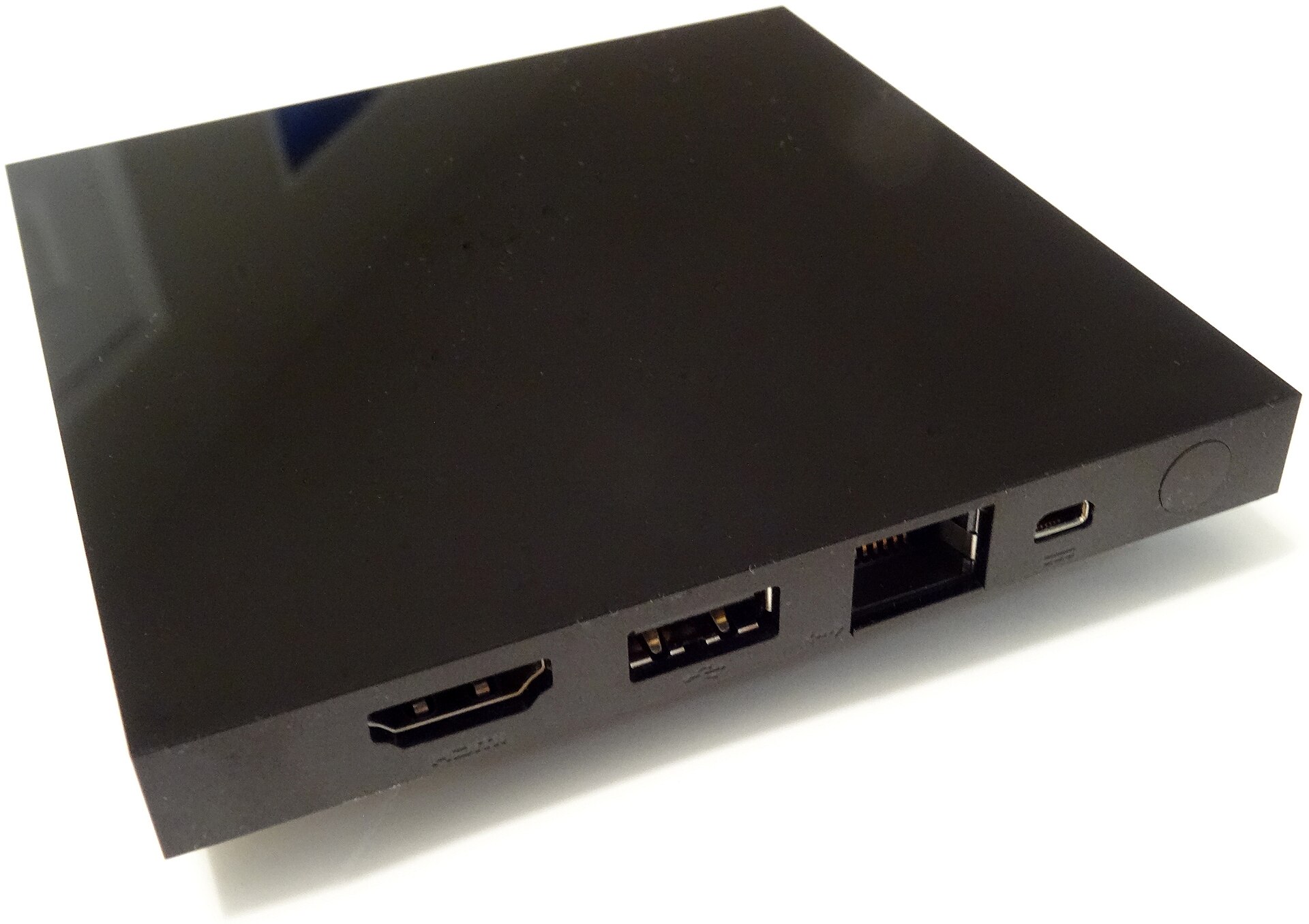
3. Disconnect every HDMI device
A bad stick can black the input layer. See if the home menu returns.
4. Unplug the TV for a full minute
Clears a stuck Tizen, webOS, or Google TV session.
If it still fails
- A TV that clicks after a storm may have a dead power board. Stop cycling it.
When you are done, browse more in TV & Living Room or search the Guide Center for the next job on your list. A neighbour problem — a remote, a bill, a suitcase — has its own walkthrough.
Common questions
Is this the same as No Signal?
No. No Signal shows a message. A freeze or backlight fault is just black.